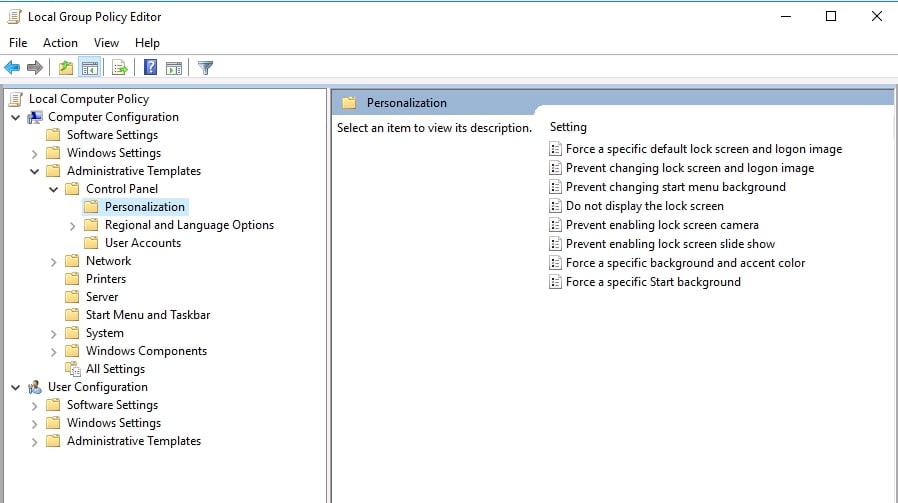
How to enable Group Policy Editor in Windows Home
While the Local Group Policy Editor is readily accessible on Windows Professional and Enterprise editions, it isn’t included by default in the Home edition. To use it on Windows Home, users need to follow specific steps to enable this feature. This guide will show you how to enable the Group Policy Editor on Windows Home editions.
What is the Group Policy Editor in Windows?
The Group Policy Editor is an administrative tool in Windows that allows users to configure a wide range of system settings. It provides an interface to manage policies that control system behavior and the user experience, such as setting password requirements, restricting access to specific applications, or customizing desktop settings.
How to Access the Group Policy Editor in Windows Home?
While the Local Group Policy Editor is readily accessible on Windows Professional and Enterprise editions, it isn’t included by default in the Home edition. To use it on Windows Home, users need to follow specific steps to enable this feature.
How to Enable Group Policy Editor (gpedit. msc) on Windows 10/11 Home Edition?
To enable the Group Policy Editor on Windows Home editions, you can use PowerShell Script to enable the Group Policy Editor on Windows Home edition.
Using PowerShell Script
For those with technical expertise, using a PowerShell script to enable the Group Policy Editor is a quick and effective method. This approach involves running a script that automates the installation, allowing you to easily access the Group Policy Editor on Windows Home Editions.
-
Step 1: Open Notepad
-
Step 2: Copy this code and paste it into Notepad and save as it a .bat file
@echo off
pushd "%~dp0"
dir /b %SystemRoot%\servicing\Packages\Microsoft-Windows-GroupPolicy-ClientExtensions-Package~3*.mum >List.txt
dir /b %SystemRoot%\servicing\Packages\Microsoft-Windows-GroupPolicy-ClientTools-Package~3*.mum >>List.txt
for /f %%i in ('findstr /i . List.txt 2^>nul') do dism /online /norestart /add-package:"%SystemRoot%\servicing\Packages\%%i"
pause -
Step 3: Next, click on the saved file and choose "Run as administrator" from the options.
-
Step 4: Once the process is complete, press any key to close the Command Prompt.
-
Step 5: Restart your computer.
Accessing the Group Policy Editor in Windows Home
You can access the Group Policy Editor on Windows Home editions by following these steps:
-
Method 1: Using the Search Bar
- Press Windows Key + S and type “Edit group policy” into the search bar.
- On the right side of the search results, click on Open.
-
Method 2: Using the Run Dialog
- Press Windows Key + R to open the Run dialog box, then type gpedit.msc.
- Press Enter or click OK to open the Group Policy Editor on Windows Home.
After following these steps, you should be able to access the Group Policy Editor on your Windows Home edition. This method is a quick and effective way to enable the Group Policy Editor without the need for additional software or complex configurations.
References
https://www.geeksforgeeks.org/access-group-policy-editor-in-win-home/
https://www.makeuseof.com/tag/access-group-policy-editor-even-windows-home-settings-try/
https://learn.microsoft.com/en-us/previous-versions/windows/it-pro/windows-server-2012-r2-and-2012/dn265982(v=ws.11)
https://www.varonis.com/blog/group-policy-editor/