How to Install Cursor the AI Editor on Linux ~ 2025 Update
Some tweaks are needed to get Cursor working on Linux. This is a step-by-step guide to get it working on Ubuntu Linux and WSL.
What is Cursor?
Cursor is an AI-first code editor designed for pair programming with AI, helping developers code faster and more efficiently. It can be downloaded on Windows, Mac, and Linux platforms.
While installing Cursor on Windows was straightforward - just download and run the installer, I found it quite challenging to get it working on Ubuntu Linux and WSL (Windows Subsystem for Linux).
After spending some time researching online and experimenting, I finally figured out how to properly install it on Ubuntu Linux. But for sure you can replace the codes specific to your linux distro.
Here are the detailed steps that worked for me to get Cursor up and running.
Step 1: Download Cursor
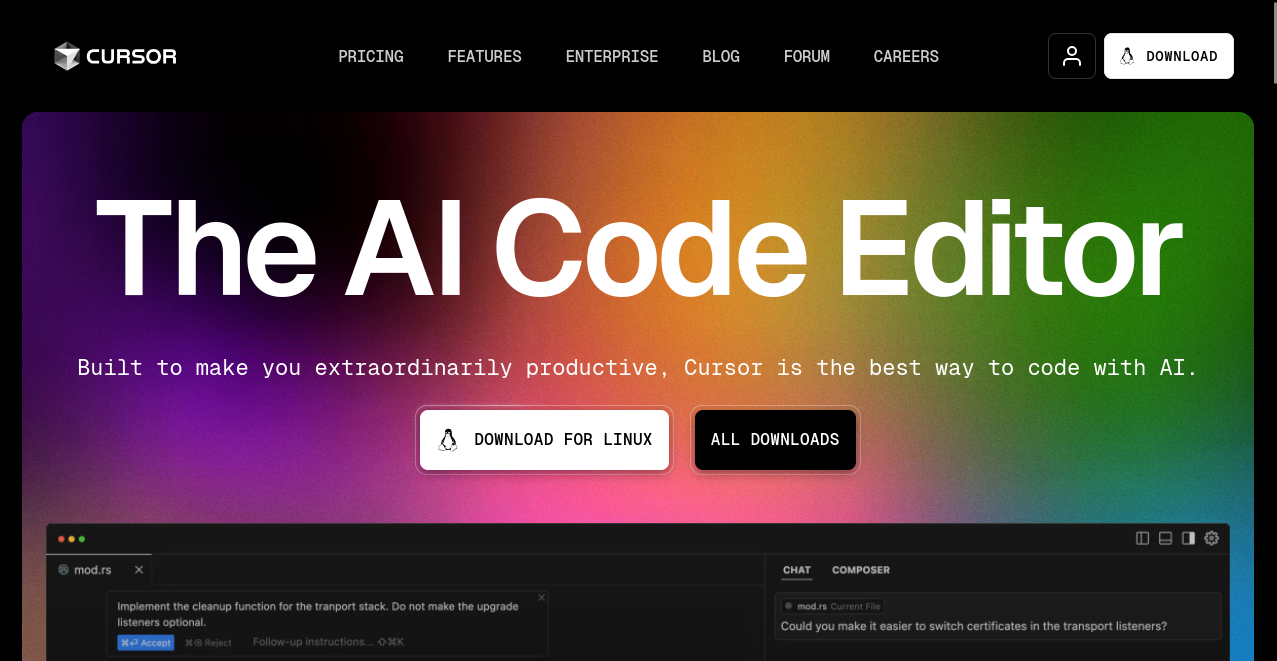
Visit the Cursor website at https://cursor.so and click on the "Download" button.
Step 2: Locate the AppImage File
When the download is finished, a file with the .AppImage extension will be in your download folder.
cd into the Downloads folder and list the files using ls to see the Cursor file.
Now, rename the file to something more readable:
mv cursor-0.42.4x86_64.AppImage cursor.AppImage
What is AppImage?
AppImage is a universal software package format that does not require the conventional installation method to be installed on Linux.
Step 3: Make the File Executable
Do not click it immediately! For the file to function properly, we must first make it executable. To make the file executable, go to the Downloads folder (or the place where you downloaded the Cursor software) and execute this command:
chmod +x cursor.AppImage
cursor is the name of the file I got from the Cursor website but yours may differ. Simply replace the name with your file name in the command above, only replace after +x
Step 4: Handle FUSE Dependencies (If Needed)
If you encounter this error:
./cursor.AppImage
dlopen(): error loading libfuse.so.2

AppImages require FUSE to run.
You might still be able to extract the contents of this AppImage
if you run it with the --appimage-extract option.
See https://github.com/AppImage/AppImageKit/wiki/FUSE
for more information
Don't panic! The error message indicates that the .AppImage requires FUSE to run. FUSE is a mechanism for Unix-like operating systems that allows non-privileged users to create their own file systems without editing kernel code.
Install libfuse2 using:
sudo apt-get install libfuse2
Step 5: Retry Making the File Executable
Once you install libfuse2, run the chmod command again:
chmod +x cursor.AppImage
Step 6: Run Cursor
You can now run the .AppImage file either by running the command from the terminal or by opening the Cursor file directly from your Downloads folder:
./cursor.AppImage
Adding Cursor to Your Applications List
- Move the app from the download to opt folder:
sudo mv cursor.AppImage /opt/cursor.appimage
- Create a desktop entry for Cursor:
sudo nano /usr/share/applications/cursor.desktop
- Paste the following in the file you've just created:
[Desktop Entry]
Name=Cursor
Exec=/opt/cursor.appimage
Icon=/opt/cursor.png
Type=Application
Categories=Development;
-
Save the file:
- Press
Ctrl + X - Press
Y - Press
Enter
- Press
-
Add an icon to the app:
- Download the icon from https://cursor.so or google it.
- Add a .png image into the /opt directory
- Name it
cursor.pngas defined in the desktop entry
If your application icon is not showing after completing all steps, try logging out and logging back in.
That's it! You should now have Cursor IDE fully installed and integrated into your Linux system.
How to Uninstall Cursor from Linux
To uninstall Cursor from your Linux system, simply delete the Cursor files from your system. Here's how you can do it:
sudo rm -rf /usr/local/bin/cursor
sudo rm -rf ~/Library/Application\ Support/Cursor
sudo rm -rf ~/Library/Application\ Support/Cursor\ Nightly
sudo rm -rf ~/.cursor
sudo rm -rf ~/.cursor-tutor
sudo rm -rf ~/.config/Cursor
Also remove other entries you've added to the system like the desktop entry and the icon.